
Unfollowers
How to Find Someone's Instagram: Username, Name, and Phone
Learn how to find someone's instagram by username, name or contact sync, confirm the right public profile, and respect privacy limits.
Nov 16, 2026
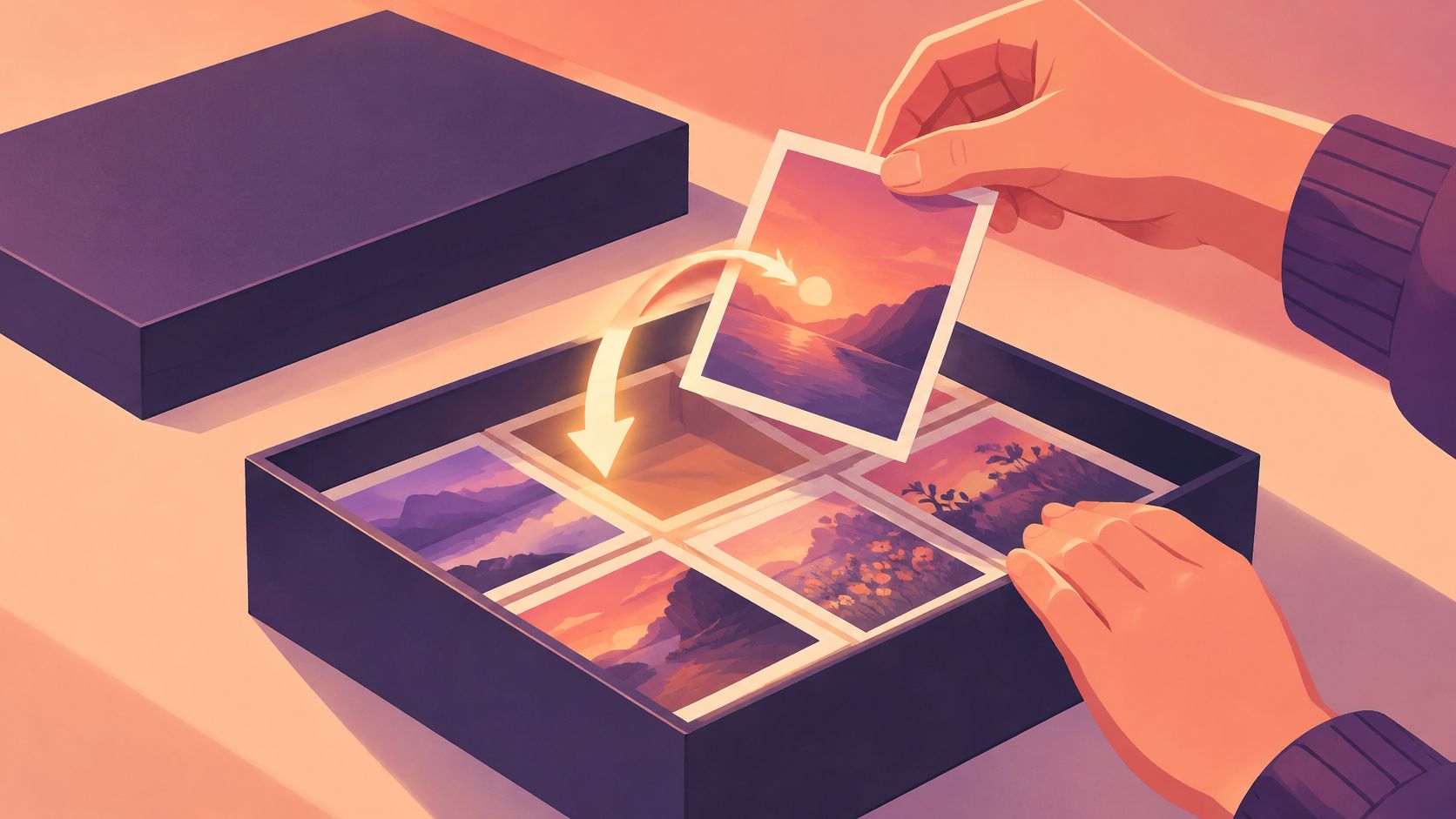
Learn how to unarchive a post on Instagram from the mobile app, find it in your Archive, and restore it to your grid with likes and comments.
Open the archived post in the Instagram mobile app, tap the three dots in its top corner, and choose Show on profile. The post goes back on your grid with its caption, likes and comments intact, and nothing is re-uploaded.
For public follower comparisons, Unfollowers Track offers public scans without your Instagram password; it does not restore posts.
Then the profile loads, and the post isn't where you might expect it to be. That's the part short guides skip. A restore doesn't push anything to the top of the grid. It puts the post back in the slot it has occupied since the day it was published, which for anything from last spring means a long scroll down. Nothing has gone wrong when you can't see it at the top, and knowing that in advance saves a second round of panic-tapping.
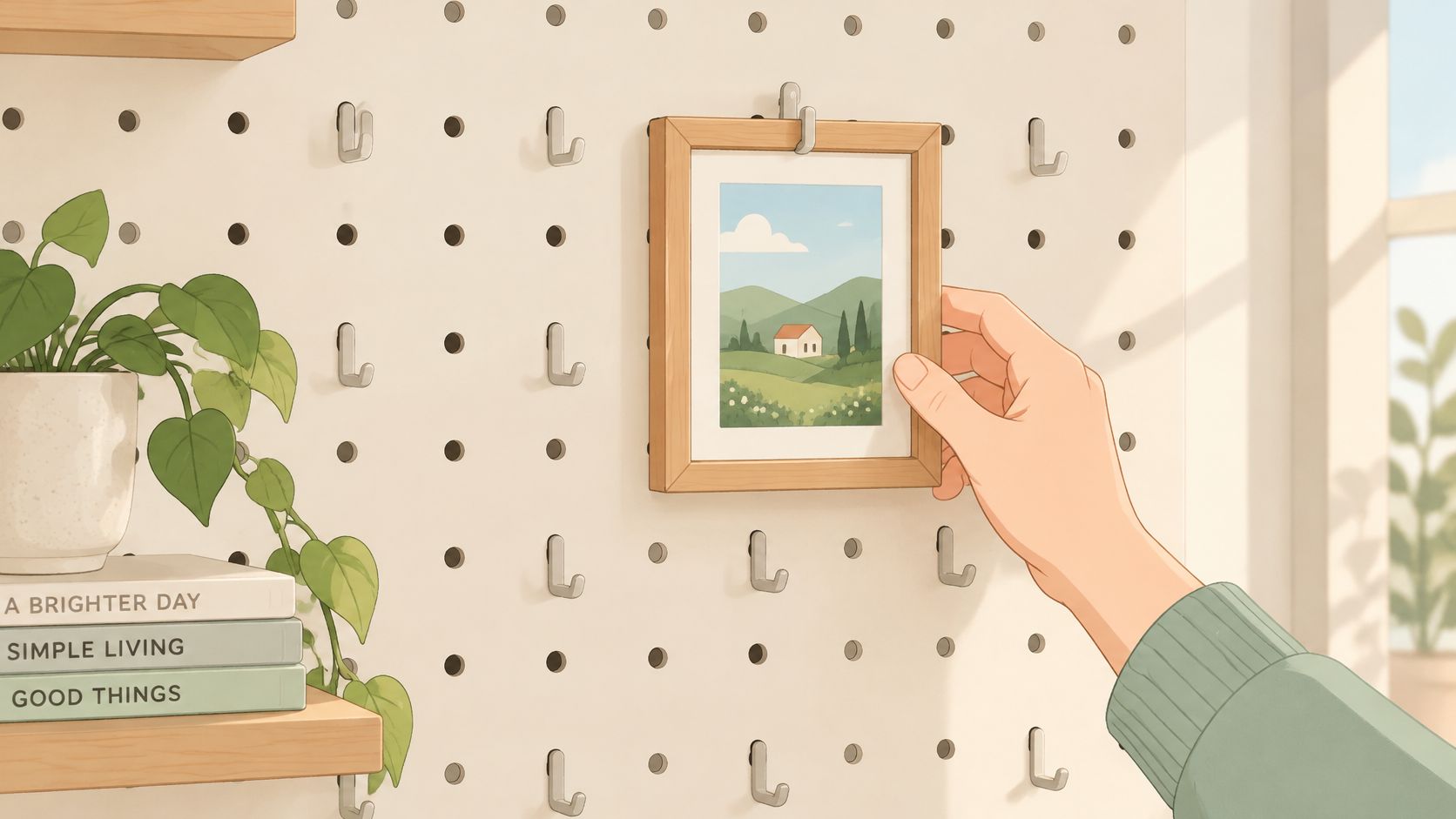
Want to bring a hidden post back to your profile? You can restore it in Instagram's mobile app on the account that published it. Instagram's Help Center instructions for showing an archived post again describe the mobile-app workflow.
Restoring makes an existing post visible again. It keeps its publication date and engagement, while deleting and reposting creates a new post with a fresh engagement count.
If the post seems missing, check its publication date. If it was published in March, it's back in March.
To locate a post, open your profile and tap the menu. Below How you use Instagram, choose Archive. Tap Stories archive at the top and select Posts archive, as described in Instagram’s restore instructions.
If you're checking for a Story, use the Instagram Story archive and saving guide. For a feed post, make sure you're signed in to the account that published it. Each account has its own Archive, so switching accounts can make a post seem missing.
If the post still isn't there, see Archived Versus Deleted Posts and Their Recovery Routes to choose the right recovery route.
A missing post can be in one of two places: Archive or Recently Deleted. An archived post is hidden from your profile but remains available to you, along with its likes and comments. Deleted photos, videos, Reels, and Stories may be recoverable through Recently Deleted, subject to Instagram's rules and time limits, as described in its help page on Recently Deleted.
| Criteria | Archived post | Recently deleted post |
|---|---|---|
| Visible to other people | No, hidden from the profile | No, removed from the profile |
| Where to find it | Profile menu, then Archive | Recently Deleted |
| Restore action | Show on profile | Recovery through Recently Deleted, subject to time limits |
| Likes and comments | Stay with the post | Use the separate Recently Deleted recovery process |
Check the location before choosing a recovery route. If the post is in Archive, select Show on profile. If it is in Recently Deleted, follow the recovery steps there while the item is still within Instagram's allowed time window. The guide to recovering deleted Instagram posts explains that route.
Hypothetical example: a photographer deletes a Reel and archives a photo on the same afternoon. Later, the photo appears in Archive, while the Reel must be checked in Recently Deleted. A post you never archived will not appear in Archive, so check Recently Deleted next.
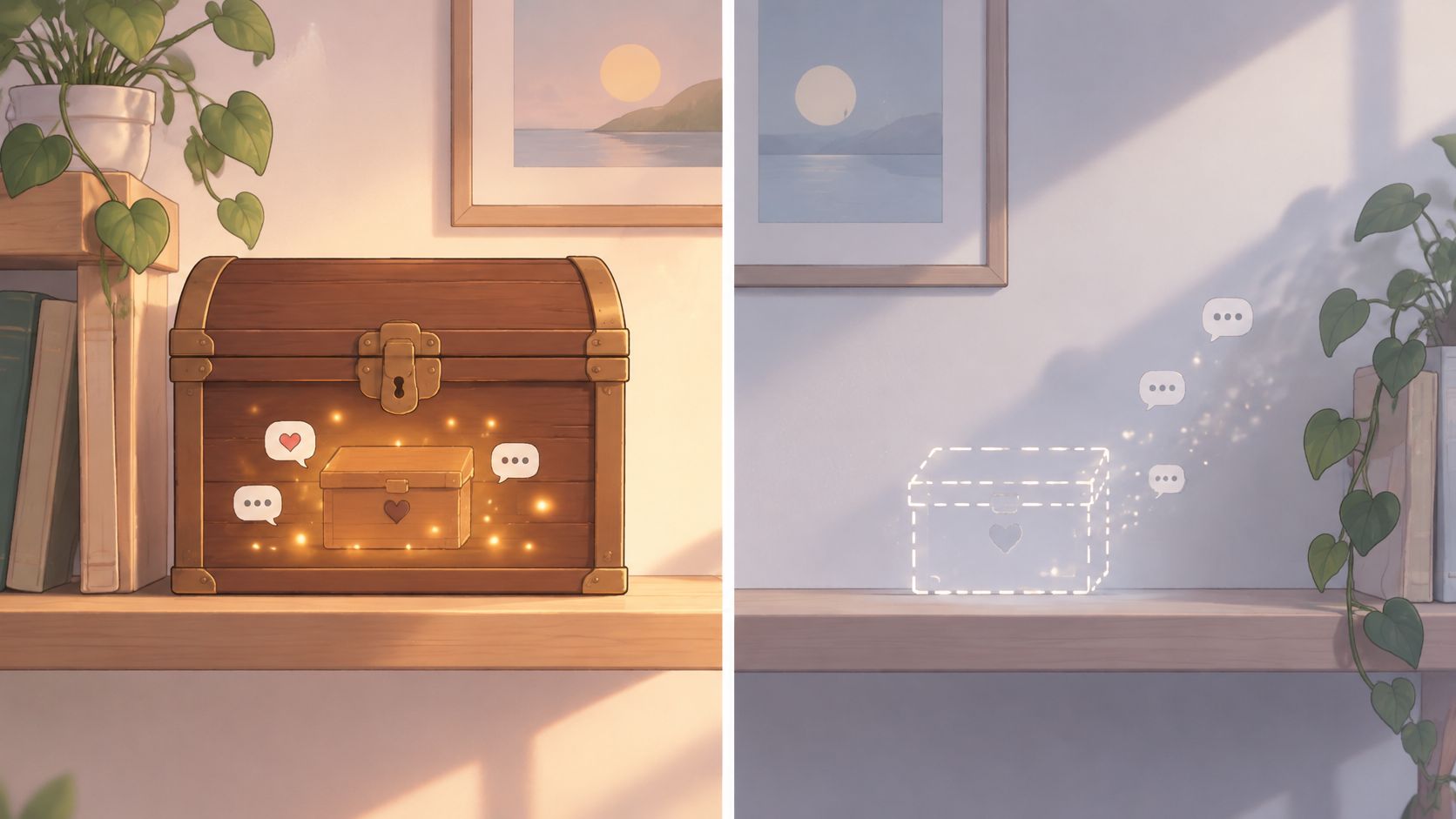
A common false alarm is a restored post that does not appear at the top of the grid. Instagram's Help Center instructions for restoring archived posts says restored posts return to their original chronological position, rather than appearing as newly published. The post is back in its old place, like a book returned to its original spot on a shelf.
| Symptom | Likely cause | Fix |
|---|---|---|
| Restored post not at top of the grid | It returns to its original date position | Check the grid around the post's expected place |
| Show on profile missing on a computer | These instructions describe the mobile app | Use the Instagram mobile app |
| Post not listed in Archive | It may be a Story stored separately | Check the Stories archive |
To confirm the post is visible again, open it from its place in the grid and check that the caption and comments are present. A post that opens from its old slot has returned to the profile, even though it has not moved to the top.
Hypothetical example: a designer tidying a grid before a job search might archive two photos from last year. Each post disappears from the profile but remains in Archive, ready to be restored later.
To hide one post, open it, tap the three-dot menu, then choose Archive. Instagram's help page on archiving explains that archived posts are hidden from other people while remaining available through the account's archive tools.
You can also archive several posts together:
Instagram's instructions for archiving multiple posts describe this selection process. Bulk archiving is available, but bulk restoring is not documented, so expect to restore posts individually in the app.
For a broader change in who can see your profile, follow the steps in this guide to making your Instagram account private.
Where can I see archived posts? Open your profile menu, choose Archive, then switch the dropdown to Posts archive.
Does restoring a post put it at the top of my profile? No. Instagram says it returns to its original spot on your profile.
Can I use Archive to restore a deleted post? No. Check Recently Deleted and its recovery time limits instead; Archive is for posts you archived.
For a separate way to manage shared content, see this guide to hiding reposts on Instagram.
Unfollowers Track compares a public profile's follower list between scans, so you can review changes over time. Enter a public @username to preview results without a password. Full results may require an account or a paid plan. Visit Unfollowers Track to run a first comparison on a public account.
Link-exchange resource: CreativeClaw’s guide to creating Instagram carousels. This resource is separate from the Instagram documentation cited above.
About the author
We are the team that builds and runs Unfollowers Track, a scan-based Instagram tracker. Everything we publish is checked against how the product actually works: scans analyze public profile data only, changes show up by comparing one scan against the next, and we never ask for your Instagram password. Unfollowers Track is owned and operated by NaviStack LLC. Learn more about Unfollowers Track, read how we test and verify claims, or contact us with questions or corrections.
Unfollowers Track
Start with a free preview of who doesn't follow you back. Ongoing tracking then compares each completed scan with the last one, so you can see who unfollowed you in between.
Unfollowers
Learn how to find someone's instagram by username, name or contact sync, confirm the right public profile, and respect privacy limits.
Nov 16, 2026

Unfollowers
Does Instagram notify when you unsend a message? Generally no dedicated alert, but the other person may already have seen it. Here's what changes.
Nov 13, 2026

Unfollowers
Instagram won't tell you who unfollowed you. These four checks will, without giving any app your password, and each one has a limit you should know first.
Jul 3, 2026

Unfollowers
Learn how to recover deleted Instagram posts from Recently Deleted, including the 30-day window and when restoring is no longer possible.
Nov 11, 2026