Privacy & blocking
How to Unblock Someone on Instagram in 2026
Learn how to unblock someone on Instagram on iPhone, Android, and web, what is not restored, and how to see blocked accounts.
Oct 31, 2026
How to make your Instagram private on the app or web, what non-followers can still see, and what happens to follow requests and existing followers.
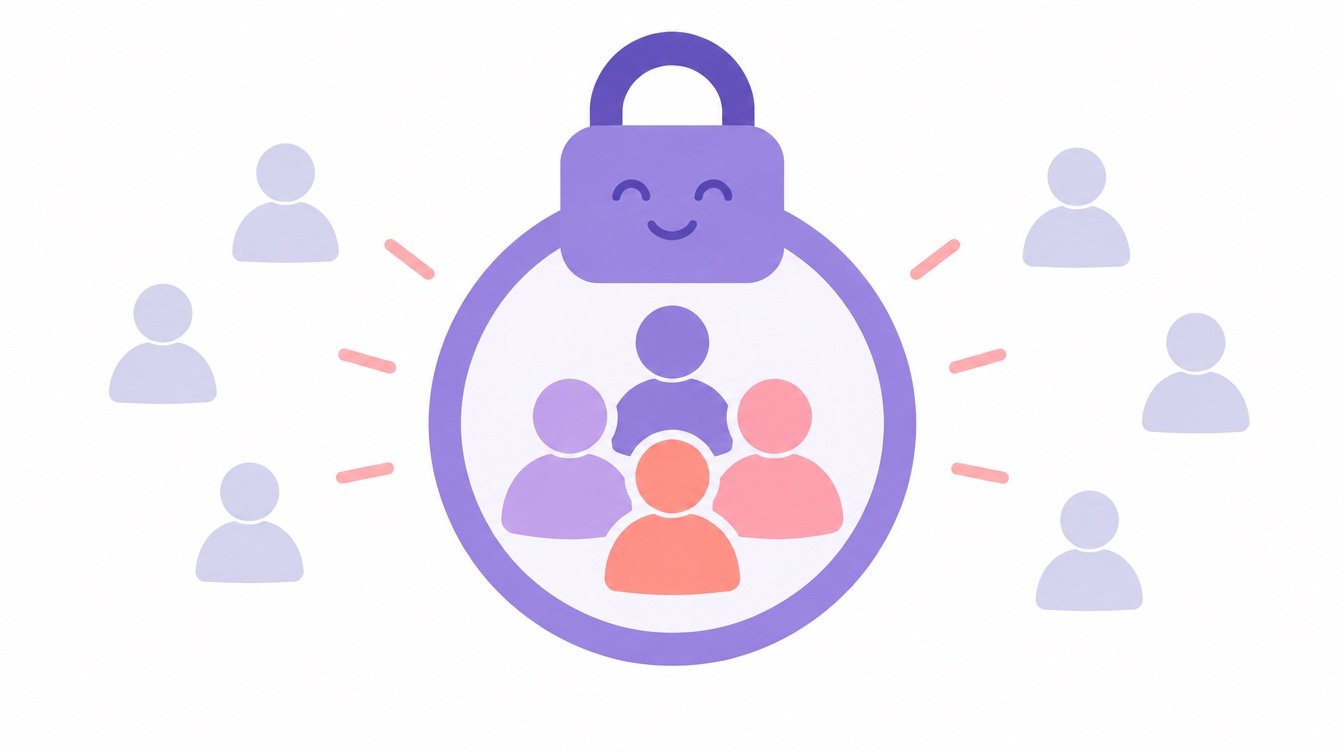
To make an Instagram account private, go to the profile, tap the menu, tap Account privacy and turn on Private account, then tap Switch to private to confirm. After the switch, only approved followers can see the account's posts, Stories and Reels, but the profile isn't deleted and existing followers aren't removed.
A private account puts approval between a person and the content shared on the profile. Instagram's Help Center says that on a private account only people the account holder approves can follow it, and only followers can see the photos and videos on the profile or in feed (differences between public and private accounts). Accounts for people under 18 are private by default.
That boundary matters if a public post brought unwanted attention, or if someone wants to share everyday moments with a smaller audience. Public-data tools, including Unfollowers Track, can only read public accounts' lists, so they can't see a profile's follower and following lists once it goes private.
The setting doesn't make the account anonymous. People may still find the profile and request to follow it, and followers already approved keep their access unless the account holder removes them. The steps below explain how to switch the setting, what visitors can still see, and how follow requests and other audience controls work.
Instagram's exact labels can change, so the current settings screen is the best guide. In the Instagram app for iPhone or Android:
On a computer, click More in the bottom left, then Settings. Click Account Privacy below Who can see your content, turn on Private account, and click Switch to private. Menu names can change between app versions, so follow the labels currently shown.
Switching to private doesn't remove people who already follow the account. Review the existing follower list separately and remove anyone who shouldn't retain access.
Business profiles can't be made private. To make a business account private, first switch it back to a personal account (Menu > Account type and tools > Account type > Switch account type > Switch to personal account), then turn on Private account.
Private means approval-controlled access, not that every trace of the profile disappears. People who haven't been approved can't see the account's shared posts, Reels, or Stories through the same public access they had before. Approved followers retain access to shared content and to the follower and following lists.
Basic profile details stay visible. Instagram says anyone on or off Instagram can still see a private account's profile information, including the profile photo, name, username and bio. Keep those details in mind if a name, image, or link would reveal more than intended.
| Element | Visible to everyone | Approved followers only |
|---|---|---|
| Profile photo, name, username and bio | Yes | Yes |
| Posts, Reels, and Stories | No | Yes |
| Follower and following lists | Not available as public lists | Yes |
| Posts in search results, Explore, and hashtag and location pages | No | No |
For a separate guide focused on follower-list visibility, see how to hide followers on Instagram. Followers can still share the account's posts in messages unless that setting is changed, but only people who follow the account can see what's shared.
Once the account is private, new followers need approval. Follow requests appear in Activity, where the account holder can approve or ignore them.
Existing followers are a separate matter. Tap Followers on the profile, tap X next to the person, then tap Remove to confirm. The removed follower isn't notified. Blocking also stops someone from following the account; for the difference between the two, read how removing a follower differs from blocking.
Practical rule: Turn on private mode, then review who already has access. The setting controls new requests, but it doesn't clean up the follower list for you.
The private-account setting and feature-specific controls do different jobs. Private mode limits access to approved followers. Close Friends lets the account holder share selected Stories with a smaller chosen group, including when the broader account audience is larger.
For unwanted interactions, choose the control that fits the situation. Blocking is a stronger boundary; restricting is a less visible way to limit interaction. Message-request and tag settings are separate from account privacy, so review them if the concern is who can contact the account or connect it to other content.
A private profile controls who can access shared content. It isn't a substitute for choosing a smaller Story audience or reviewing tag and mention controls.
For more context on one privacy question about Stories, see whether Instagram notifies someone about a screenshot. Younger users can also review Instagram's Teen Account protections with a parent or guardian. Teen Accounts are private by default, and Instagram describes extra safeguards for eligible teens, including limits on who can contact them, stricter filtering of potentially offensive comments and message requests, and Sleep Mode from 10 p.m. to 7 a.m. (Instagram Teen Accounts).
Going private can reduce the audience eligible to view a creator's or business's shared posts and Stories. If public reach matters, consider keeping the public-facing profile open while using Close Friends for personal Stories and reviewing tag, mention, and message-request controls.
A small personal brand may prefer to keep its brand presence public and use a separate personal account for friends and family. That keeps the purpose of each profile clearer, though each account still needs its own privacy and audience settings.
A private account works like a locked front door: approved followers can come in, while everyone else stops at the porch. The lock changes who gets inside, yet the house number, nameplate, and outside shape can still be visible from the street. In Instagram terms, people may still find the profile and see basics such as the username, profile photo, and bio, while posts, Stories, and follower and following lists move behind approval.
It also helps to be honest about the limit. Private posts shared to other social networks may still be visible there, depending on the privacy settings for those networks. For targeted limits on interaction with one person rather than a whole-profile audience rule, compare restricting and blocking.
What can people see on a private Instagram account?
Anyone can still see the profile photo, name, username and bio. Posts, Stories, Reels and the follower and following lists are limited to approved followers.
Does going private remove existing followers?
No. Existing followers keep access unless the account holder removes them.
Will my posts still show up in hashtags or Explore?
No. Instagram says photos and videos from a private account don't appear in search results, Explore, or hashtag and location pages, and links to them don't appear in search engine results.
What's the difference between private and blocked?
Private mode asks the account holder to approve new followers. Blocking is a targeted action against a particular account rather than a change to the audience rule for the whole profile.
To compare a public account's follower list between scans, without entering an Instagram password, use the Unfollowers Track follower tracker. After switching to private, manage who has access from the account's own follower list and follow requests.
About the author
We are the team that builds and runs Unfollowers Track, a scan-based Instagram tracker. Everything we publish is checked against how the product actually works: scans analyze public profile data only, changes show up by comparing one scan against the next, and we never ask for your Instagram password. Unfollowers Track is owned and operated by NaviStack LLC. Learn more about Unfollowers Track, read how we test and verify claims, or contact us with questions or corrections.
Unfollowers Track
Start with a free preview of who doesn't follow you back. Ongoing tracking then compares each completed scan with the last one, so you can see who unfollowed you in between.
Privacy & blocking
Learn how to unblock someone on Instagram on iPhone, Android, and web, what is not restored, and how to see blocked accounts.
Oct 31, 2026
Privacy & blocking
Can you change your Instagram username? Yes. Learn the settings steps, previous-name conditions, and why followers may be notified.
Oct 17, 2026
Privacy & blocking
Does Instagram notify when you screenshot a Story, post, Reels view or DM? Discover what actually triggers alerts and what stays private in 2026.
Oct 14, 2026
Privacy & blocking
How to hide followers on Instagram: there's no hide-list switch, but going private, removing or blocking followers limits who sees them.
Oct 13, 2026