Privacy & blocking
Why Does Instagram Hide Comments? Causes and Fixes
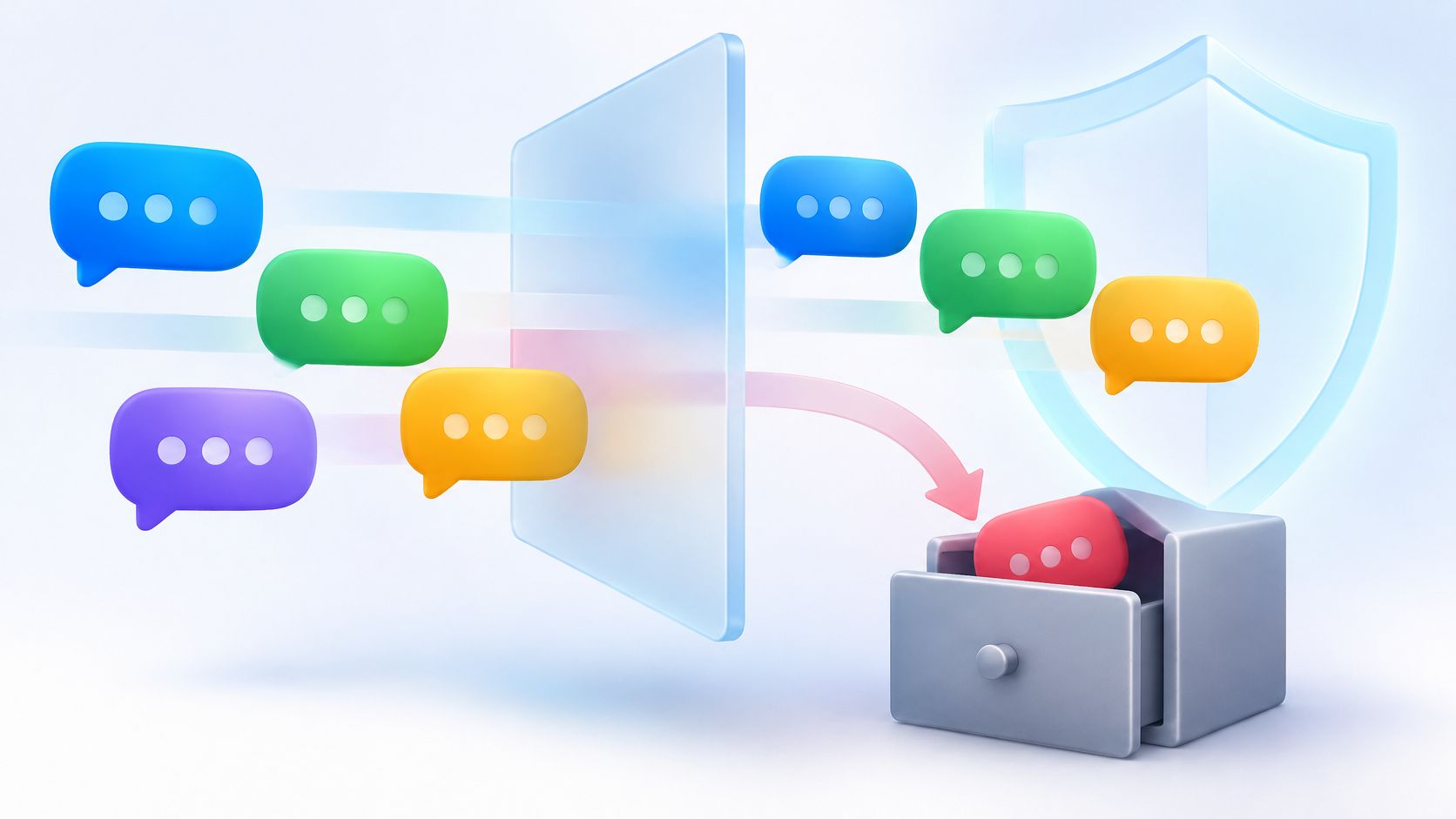
Why Does Instagram Hide Comments? Learn the filters, Restrict and Limits behind hidden comments, who can still see them, and how to review settings.
Nov 14, 2026
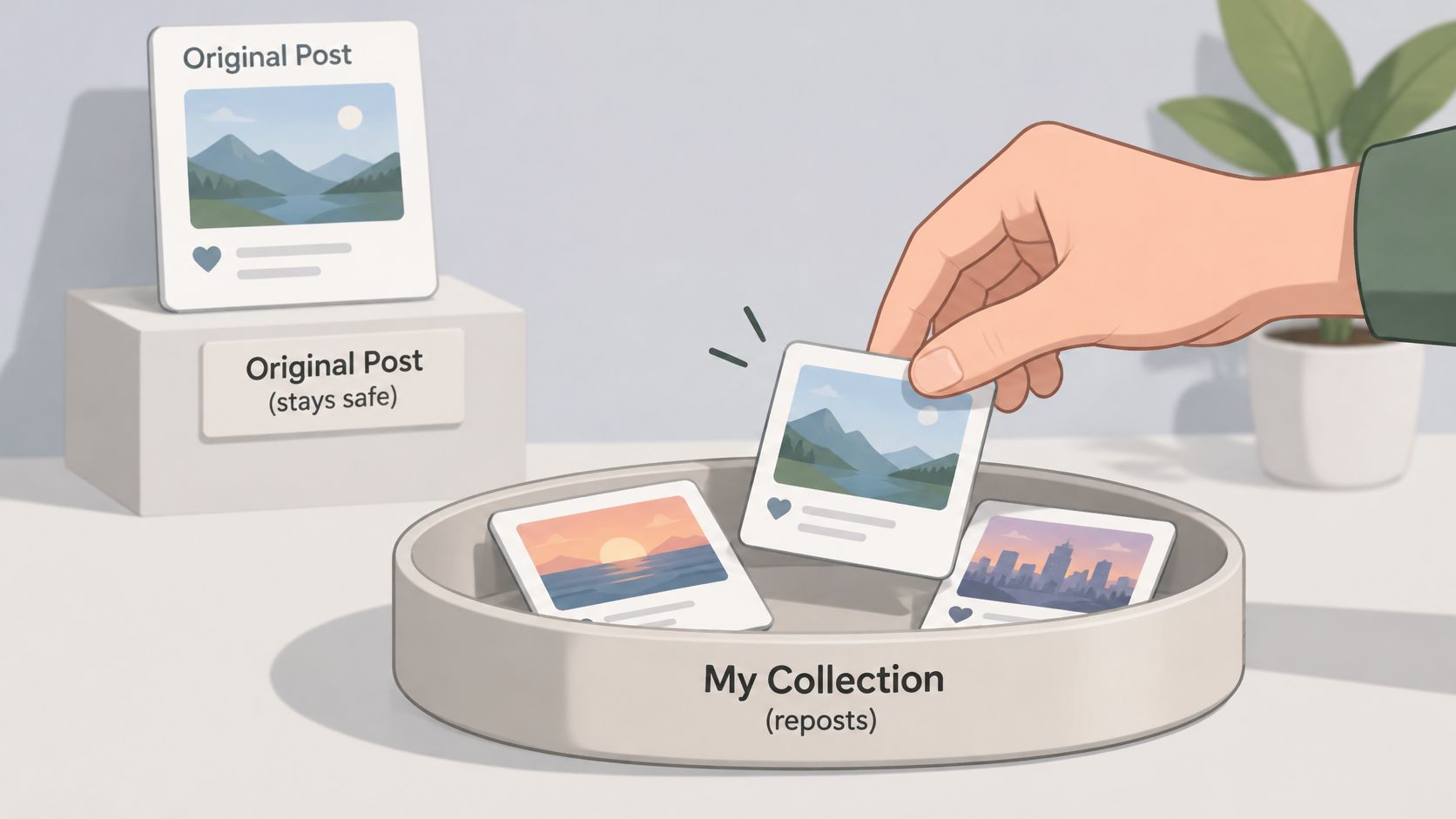
Learn how to hide reposts on Instagram: remove a repost, limit reshares of your posts, and see what Instagram's controls cannot hide.
To remove a repost from your Instagram profile, open it from the Reposts tab and use the undo-repost or removal control available in the app. Story-sharing permissions are separate and do not remove native reposts.
Each of those has a different Instagram control, and each leaves something else unchanged. Once you match the problem to the right control, how to hide reposts on Instagram becomes a practical decision instead of a hunt through unrelated privacy options.
Instagram introduced native reposts globally on August 6, 2025, according to Meta's official feature announcement. The feature covers public Reels and feed posts, puts reposts in a separate profile tab, and keeps credit attached to the original creator.
That profile tab isn't the only place a repost can appear. Instagram may also recommend reposted content in friends' and followers' feeds, so checking the regular profile grid alone doesn't reveal every place associated with a repost.
Account privacy is relevant to who can access profile activity. However, a profile audience setting and a content-sharing setting serve different purposes: one controls access, while the other governs an eligible form of reuse.
A follower-list concern also needs its own approach. The guide to hiding followers on Instagram addresses that separate privacy question.
Practical distinction: The location of a repost and permission to reshare original content are separate things to manage.
Reposts remain a recent feature and may change, so Instagram's Help Center should be checked before relying on a particular menu path.
Removing the repost is the clearest action when a particular item needs to leave the Reposts tab. Instagram's repost Help Center guidance describes mobile availability rather than computer access, so the workflow starts in the app.
Menu names and available controls can differ by account, app version, and rollout. If the expected action isn't visible, checking for an app update is a reasonable troubleshooting step, rather than assuming another privacy setting will remove the item.
Verification matters because hiding something from the regular profile grid isn't the same action as removing a repost. The useful confirmation is whether the target item still appears in the account's Reposts tab.
For a hypothetical example, an account owner who no longer wants a shared travel Reel associated with the profile should remove that repost, then inspect the tab again. Changing the Story-sharing permission would address a different task.
For several unwanted items, a careful workflow is to handle each repost individually and recheck after each change. The removal concerns the account owner's repost, not deletion of the creator's original post or management of other people's reposts.
Each repost-related control handles one specific job, and most confusion comes from asking a control built for one task to perform another. The table maps every option to the result it produces and the result it leaves in place.
| Action | What it stops | What it does not change |
|---|---|---|
| Remove a repost | Stops that repost appearing in the Reposts tab | The audience that already saw it |
| Switch account to private | Limits access to future profile activity and restricts reuse of account content | Exposure that occurred before the change |
| Turn off Posts and reels to stories | Blocks future eligible Story reshares of posts and Reels | Story reshares made before the change |
| Hide like and share counts | Hides the relevant engagement numbers where supported | The repost, its placement, and its visibility |
Hiding like and share counts changes the numbers viewers see, not whether the repost is on your profile. A repost with hidden counts still sits in the Reposts tab and still reaches the same audience.
A quieter-looking post isn't necessarily a less visible post.
One pattern runs through the entire column: timing. Removing a repost acts on something already public, while the privacy and sharing permissions shape what happens next. Picking the right control works like flipping the right breaker on an electrical panel, since every other switch leaves the original circuit on.
Limits: None of these controls removes copies, screenshots, or downloads that other people already made.
Instagram's documented options don't include a repost-only hide switch, and no combination of unrelated settings produces one. Matching the unwanted result to the correct row above is the closest available path.
Managing other people's shares of original content works differently from removing an account's own reposts. For public-account owners, Instagram's Story-resharing Help Center page documents one specific permission under sharing settings, and the path to it is short:
The documented effect is prospective: disabling the option stops future eligible Story reshares and leaves earlier ones in place.
The setting's wording tells you its scope. "Posts and reels to stories" controls Story reshares only. It does not remove existing reposts from the Reposts tab, and it does not affect other ways content travels, such as screenshots or downloads.
A quick check helps after changing it: return to the setting and confirm the toggle shows as off.
When the concern is a particular person's behavior instead of content reuse, the comparison of restricting and blocking on Instagram covers that separate decision. Sharing permissions govern what can happen to a post, while restrict and block govern how one account can reach you.
Going private works like changing the guest list after flyers are already posted: it narrows who can view and reuse future content, while reposts already on the profile still need their own removal step.
Instagram's privacy guidance says privacy settings determine who can see posts and interact with an account, and that private accounts prevent others from reusing Reels, feed videos, and photos.
The walkthrough for making an Instagram account private covers the same screen with more context.
When several concerns apply at once, work from the narrowest control outward. Start with the individual repost, since removing a specific item leaves every sharing permission and the account's audience untouched. Move to the Story-resharing permission only when future shares are the worry. Reach for account privacy last, because it reshapes visibility across the entire profile. Each wider level covers what the one before it missed, so this order makes clear which control solved the problem.
One situation sits outside that order entirely: a particular person. Removal, resharing permissions, and account privacy all apply to content or to the audience as a whole, and none of them singles out one account. If a specific follower's access is the main concern, the question shifts to whether to remove a follower or block the account on Instagram, two options that differ in what the other person can still see and in how easily the change can be reversed.
Delete the repost, then use the control table earlier in this guide to choose any narrower permission that still applies to the surrounding content.
Native reposts apply to public posts and Reels, not private-account content, according to Instagram's official repost announcement. The privacy of the original content and the privacy of the account doing the sharing are separate considerations.
Instagram's documented repost availability doesn't include computers. The mobile app is the appropriate starting point for the removal workflow.
A follower may meet the repost in feed, while someone opening the profile finds it in the Reposts area; Story resharing runs through its own permission. Unfollowers Track cannot show who viewed a profile because Instagram doesn't share that information with anyone.
For public follower checks, visit Unfollowers Track to compare saved scans and identify changes between them, without providing an Instagram password.
About the author
We are the team that builds and runs Unfollowers Track, a scan-based Instagram tracker. Everything we publish is checked against how the product actually works: scans analyze public profile data only, changes show up by comparing one scan against the next, and we never ask for your Instagram password. Unfollowers Track is owned and operated by NaviStack LLC. Learn more about Unfollowers Track, read how we test and verify claims, or contact us with questions or corrections.
Unfollowers Track
Start with a free preview of who doesn't follow you back. Ongoing tracking then compares each completed scan with the last one, so you can see who unfollowed you in between.
Privacy & blocking
Why Does Instagram Hide Comments? Learn the filters, Restrict and Limits behind hidden comments, who can still see them, and how to review settings.
Nov 14, 2026
Privacy & blocking
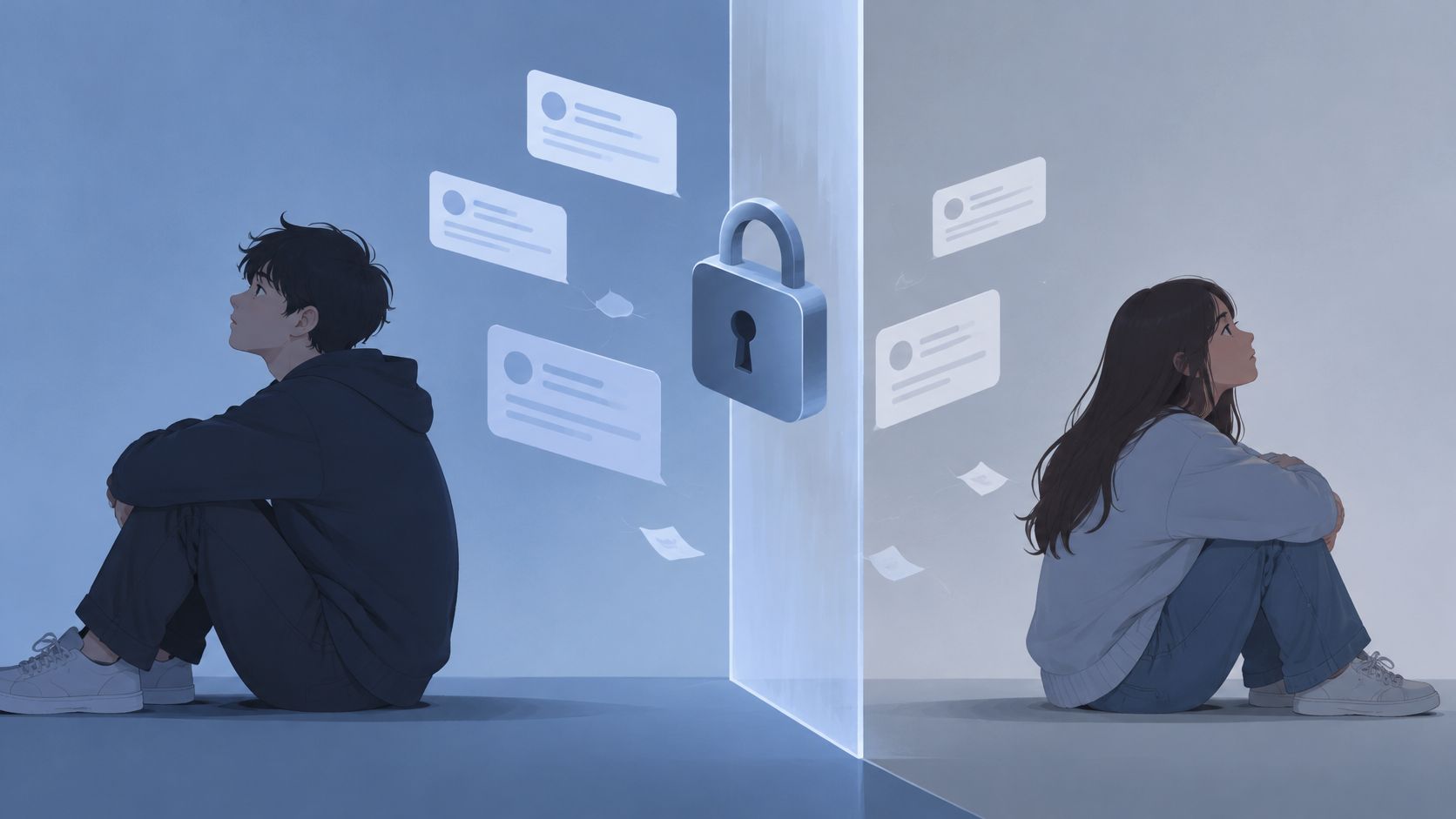
If I block someone on Instagram will the messages disappear? No. The one-to-one thread stays; new DMs sent while blocked are not delivered later.
Nov 7, 2026
Privacy & blocking
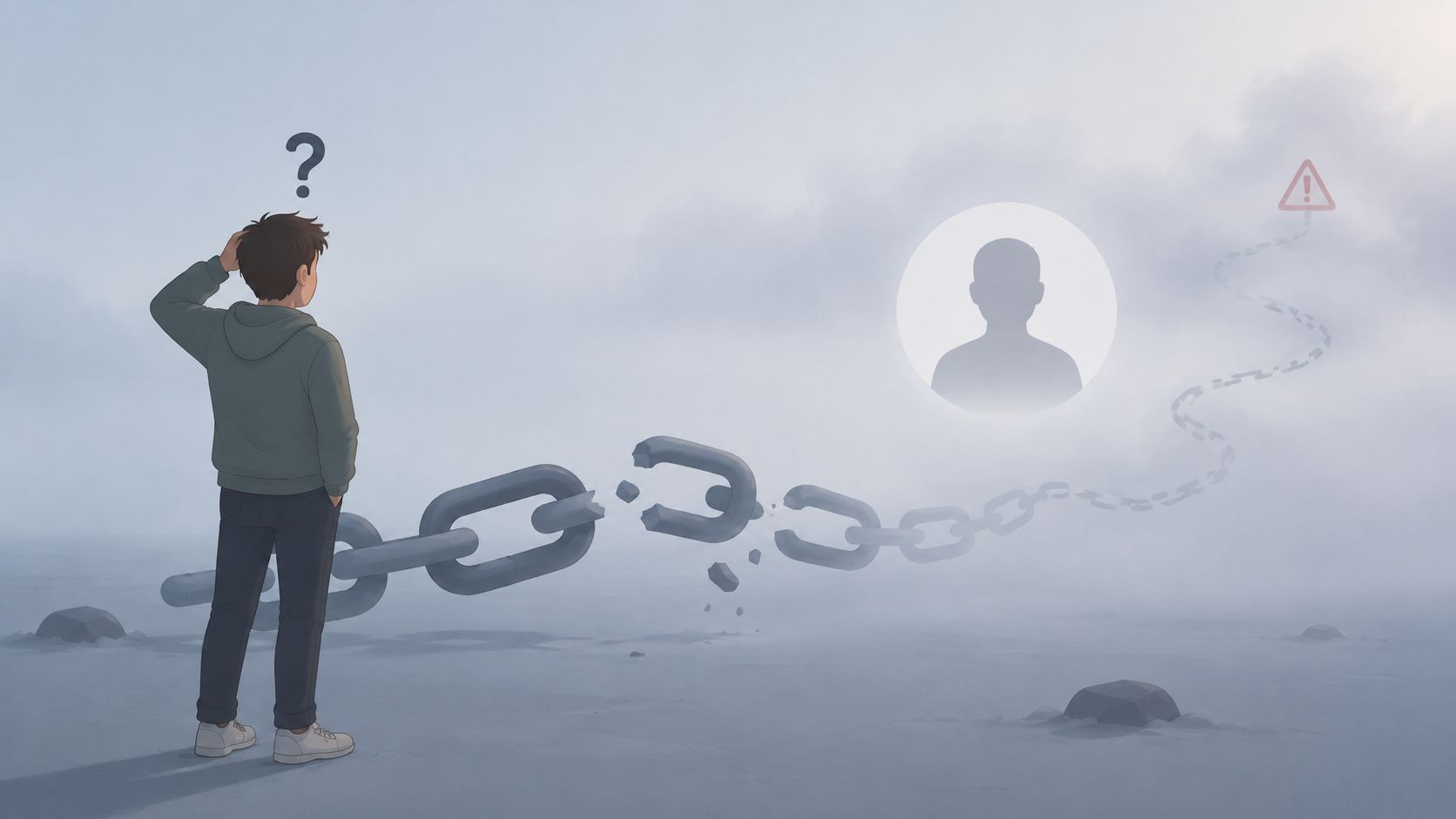
What user not found instagram can mean: a block, rename, deactivation, deletion, or disabled account, and how to check without guessing.
Nov 4, 2026

Privacy & blocking
How to turn off active status on Instagram in Messages and story replies. Turning it off also hides other people's status from you.
Nov 1, 2026